How to Make a Wooden QR Code Sign with the xTool X1
Thank you so much to xTool for providing me with the new X1 machine! With that being said, all reviews and opinions are completely my own.
Disclaimer: As an Amazon Influencer, I earn from qualifying purchases. This means that at no additional cost to you, I may earn a small commission if you decide to make a purchase. I also make a commission from clicks via my affiliate links from other companies I partner with as well. However, all opinions are my own. For more information, please feel free to read the affiliate disclosure on our privacy policy page.
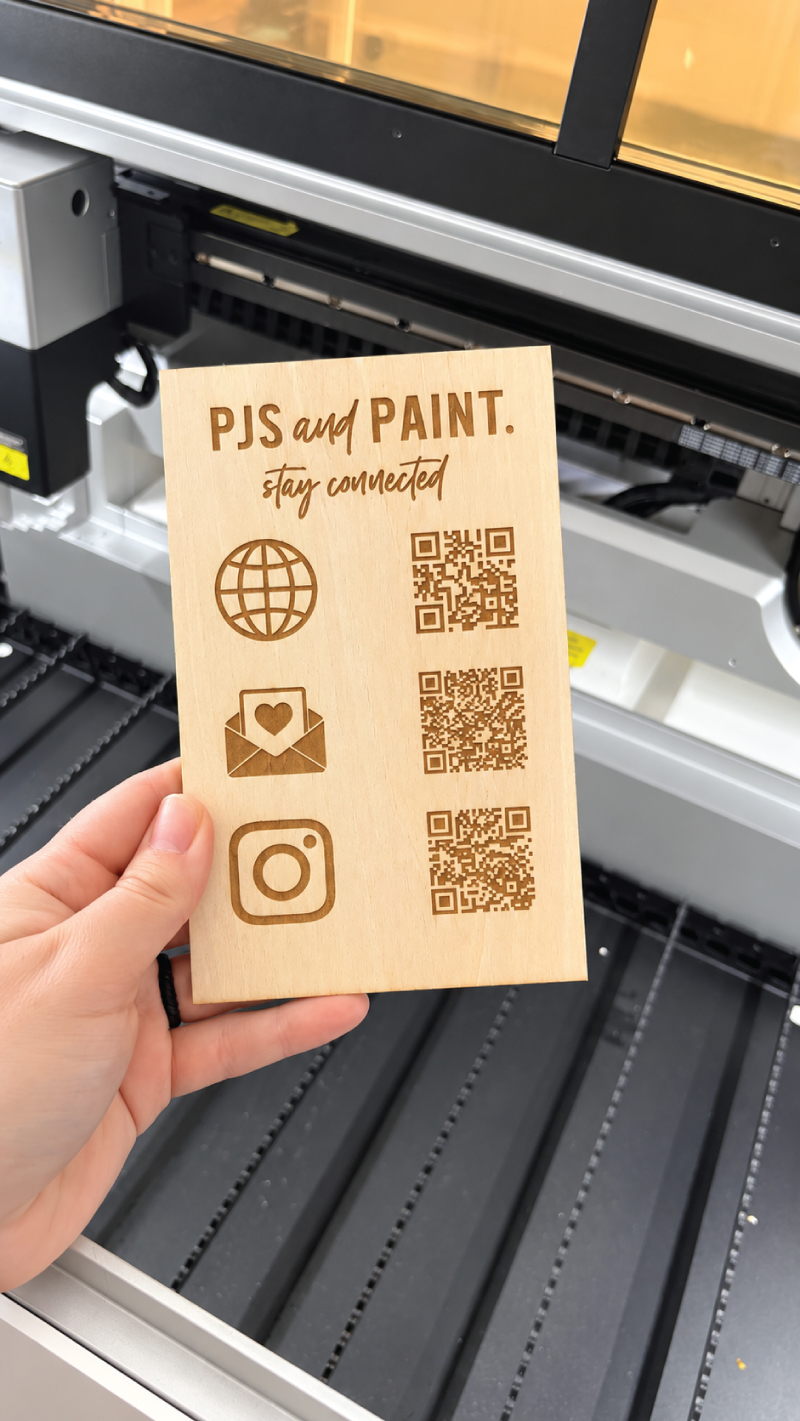
Lately I have been considering attending a craft fair for my small business. One of the parts I have been most excited for is decorating and creating things for my future booth. Something that I thought was very necessary was a way for potential customers to keep in touch with me.
Instead of handing out business cards that will probably get lost somewhere, I wanted to create a sign using QR codes that customers can easily scan to find my website, social media and subscribe to my email list on the spot.
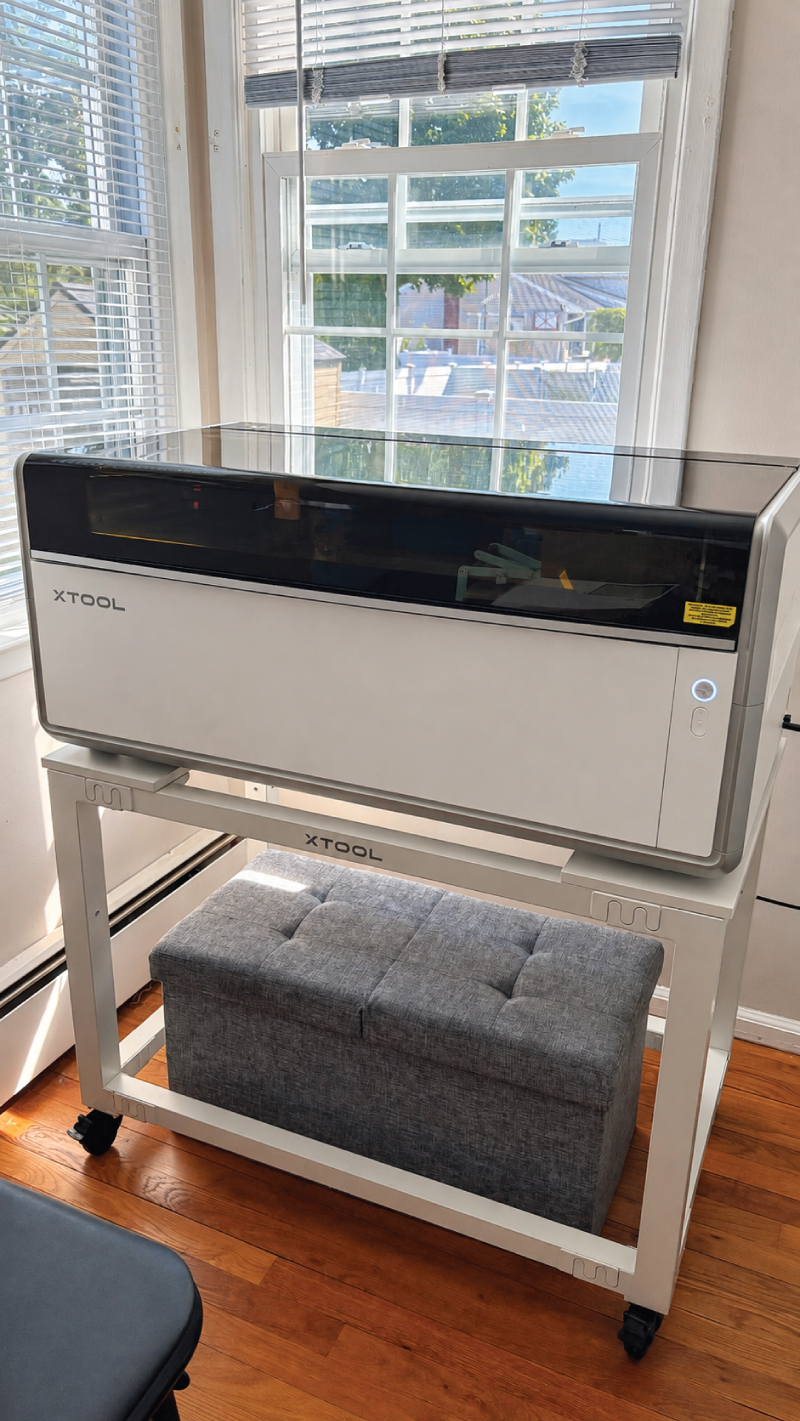
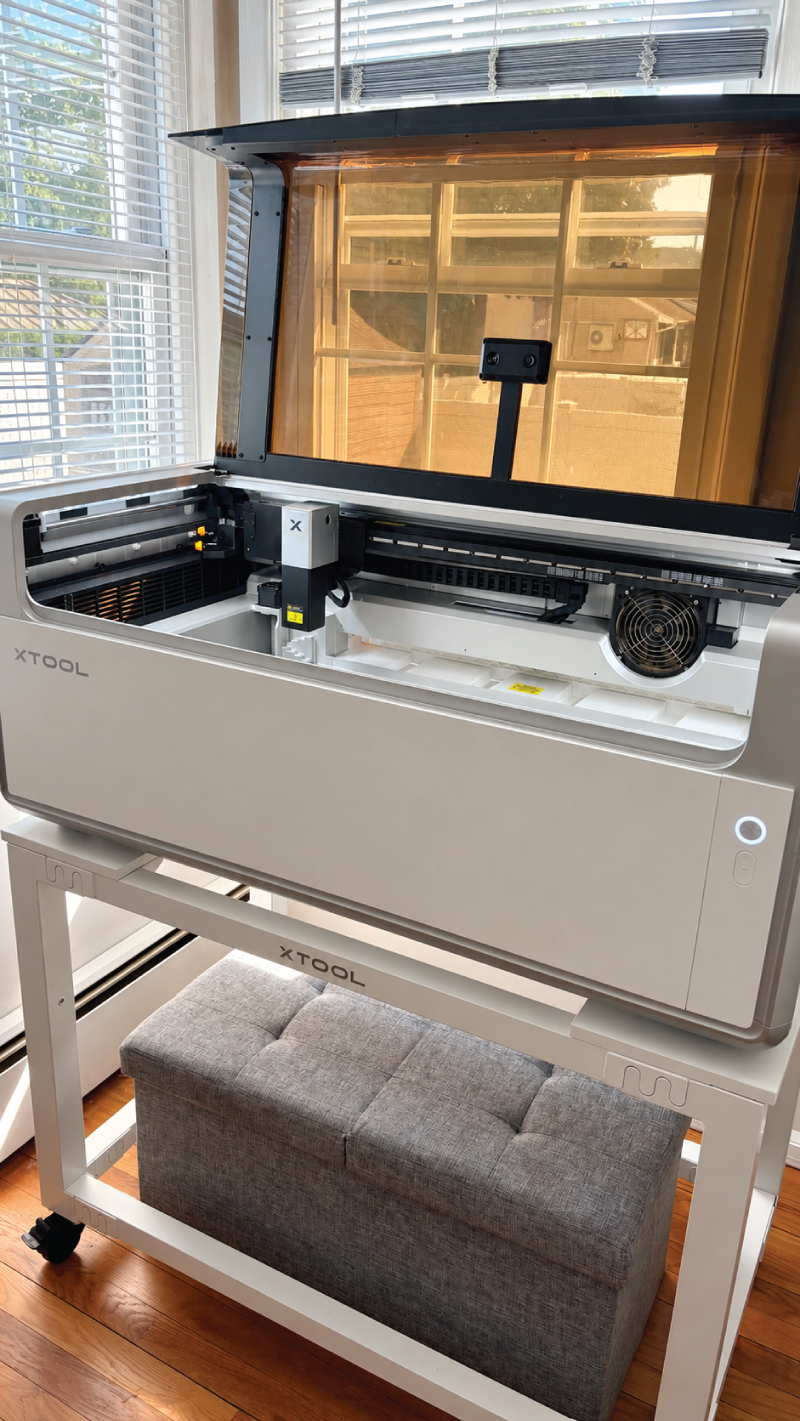
I’ve seen QR code signs before and have always wanted to make one of my own. The xTool X1 laser machine was just the thing to help my vision come to life.
First, I designed the sign in Adobe Illustrator, adding my logo, some cute graphics and the corresponding QR codes. Once designed, I brought it into xTool Studio and began playing around with the settings to make sure everything cut and engraved just the way I wanted it to.
The Studio software is so easy and intuitive to use. I was able to correspond different coloring in my design to the action I wanted the laser machine to make. Within just a few minutes of adjusting the settings I was able to see where my design would land on the wood in the machine.
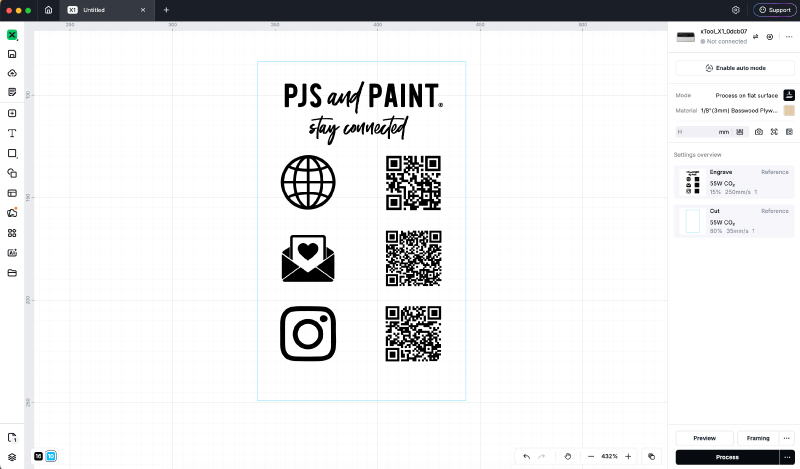
I absolutely love the camera feature. Not only is it very helpful to see what is going on inside the machine, but it helps use every inch of scrap wood you have so that nothing goes to waste.
Once I had the QR code sign cut engraved and cut out, I decided that I wanted to create a little stand for my sign. I did not have any files of my own to create a little easel but thankfully when I logged into Atomm Projects I was easily able to select an premade design that someone else had created and uploaded.
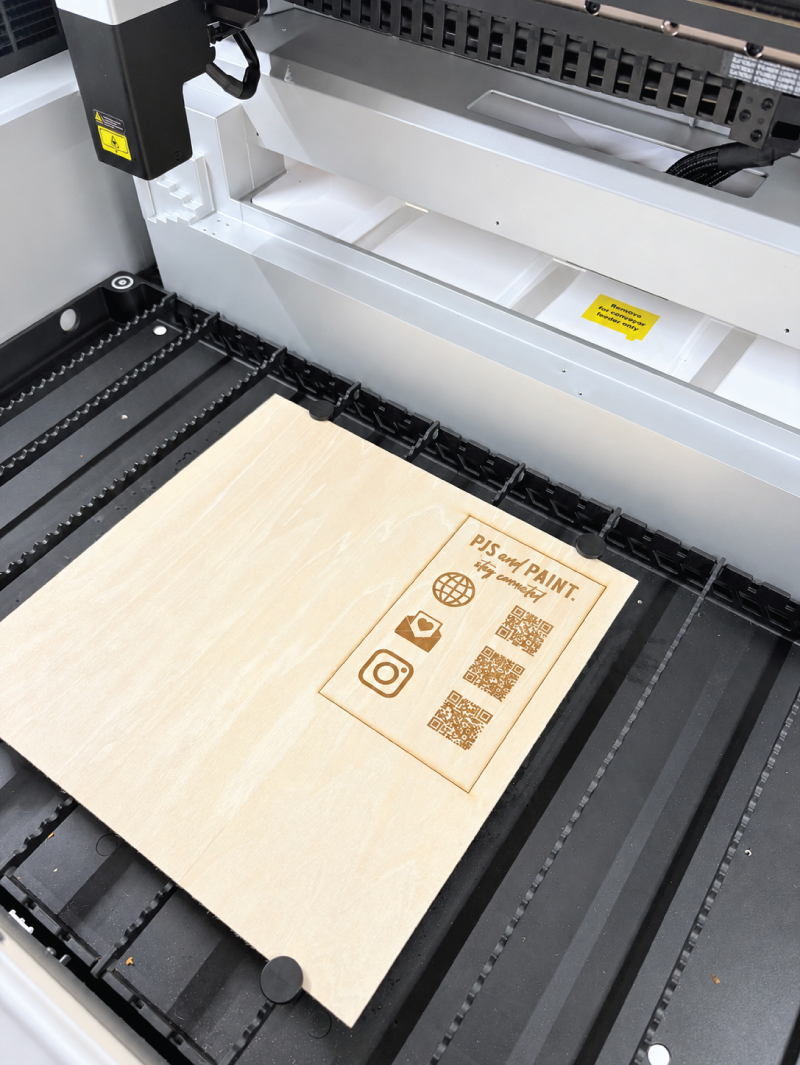
I simply adjusted the size to fit my needs and pressed “process.” It was truly that simple. There are so many projects and inspiration that you can find in the Atomm Project section of the xTool Studio, I’m very excited to continue looking through projects to see what I might want to create next.
Next, I am planning on creating another little sign and easel to display the different ways customers can pay for my products, along with the QR codes they can scan. Not only am I using the X1 as a way to create my products, but I am also using it to promote my business as well. It is the perfect combination!
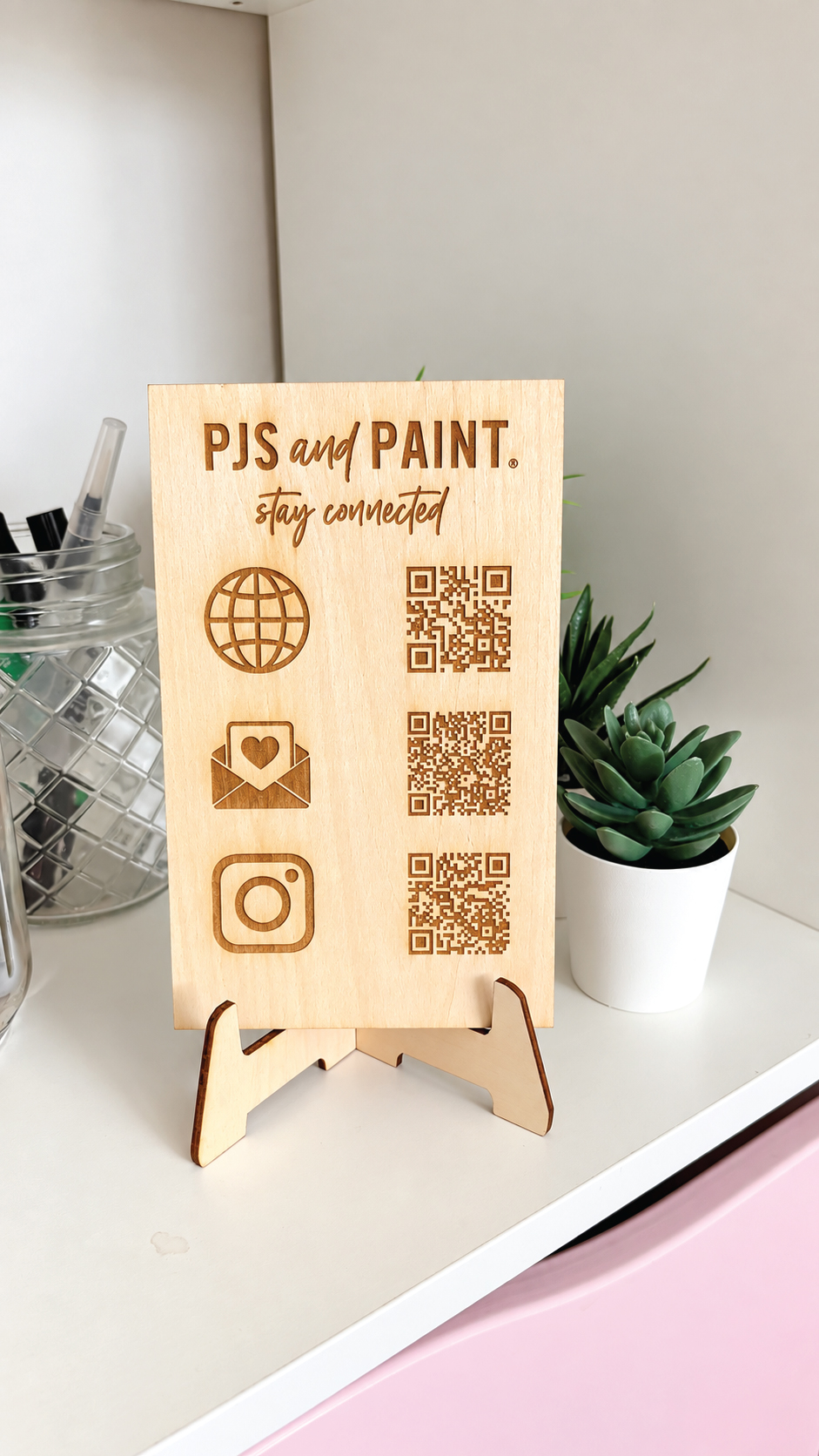
If you want to check out the xTool X1 for yourself, you can do so here.